PokePath TD Save Guide: Export & Import (Backup Your Progress)
If you’re playing PokePath TD (often typed as pokepath td) in a browser, here’s the truth: your save is only “safe” if you back it up yourself.
On our site, the most common panic message we see is basically:
“Help… my PokePath TD save is gone.”
So this page is the no-drama, copy-paste friendly guide to export save and import save the right way.
What you’ll learn:
- when to back up your PokePath TD save
- how to export a save (backup)
- how to import a save (restore)
- quick checks for save lost / save code invalid
Heads up: buttons may look slightly different depending on where you play, but the workflow is always: Export → store safely → Import when needed.
1) Quick idea: how PokePath TD save works (in human words)
When you play pokepath td online, your progress is usually stored inside your browser (site data/local storage).
That’s convenient… until it isn’t.
Common “why did my save vanish?” moments:
- you played in private/incognito mode
- your browser clears cookies/site data on exit
- an extension wiped storage
- the page crashed before it wrote the save properly
So treat browser saving like auto-save in a risky game: nice to have, not reliable enough.
Your real safety net is a manual PokePath TD save backup.
2) When to export your PokePath TD save (do this and you’ll be fine)
If you only remember one rule, remember this:
Export save before you quit. Always.
Also export your PokePath TD save when:
- you just made a big upgrade or evolution
- you finally broke a hard wall (nice run!)
- you’re switching device/browser
- you’re about to AFK with Auto Mode
- your browser has crashed even once
If your brain says “I’d be mad if I lost this progress,” that’s your cue to backup.
3) How to export save in PokePath TD (backup in 60 seconds)
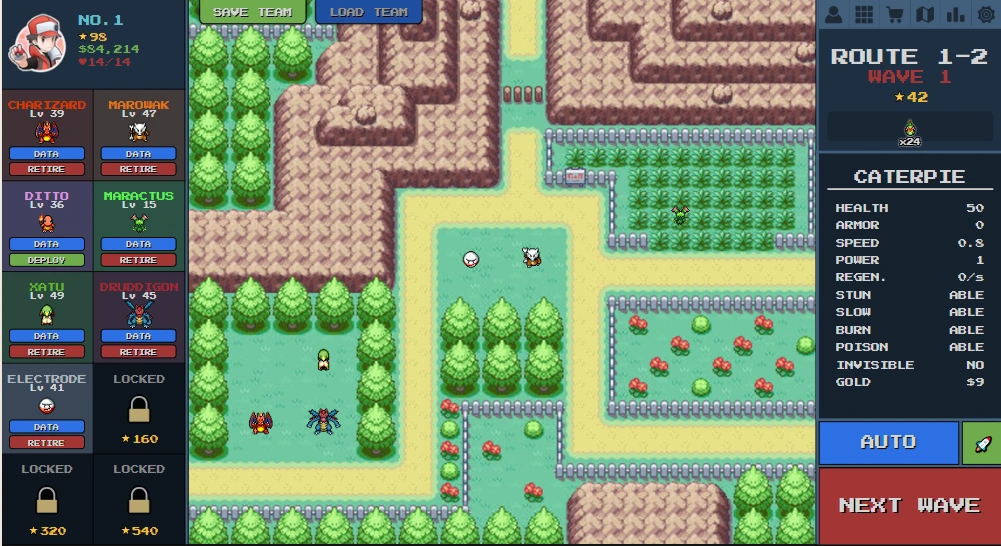
Look for Menu / Settings / Save in PokePath TD.
Export steps
-
-
Click the "Settings" button in the top right corner

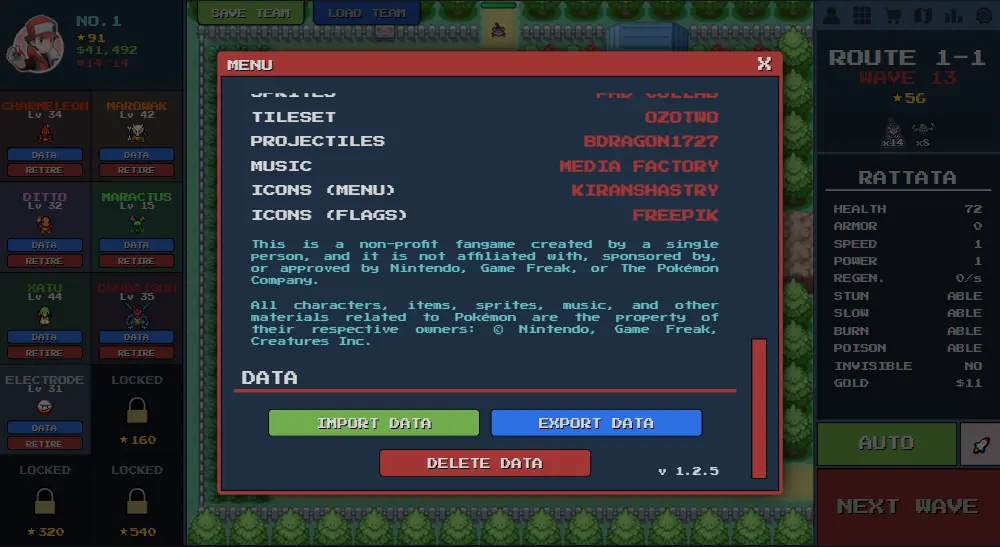
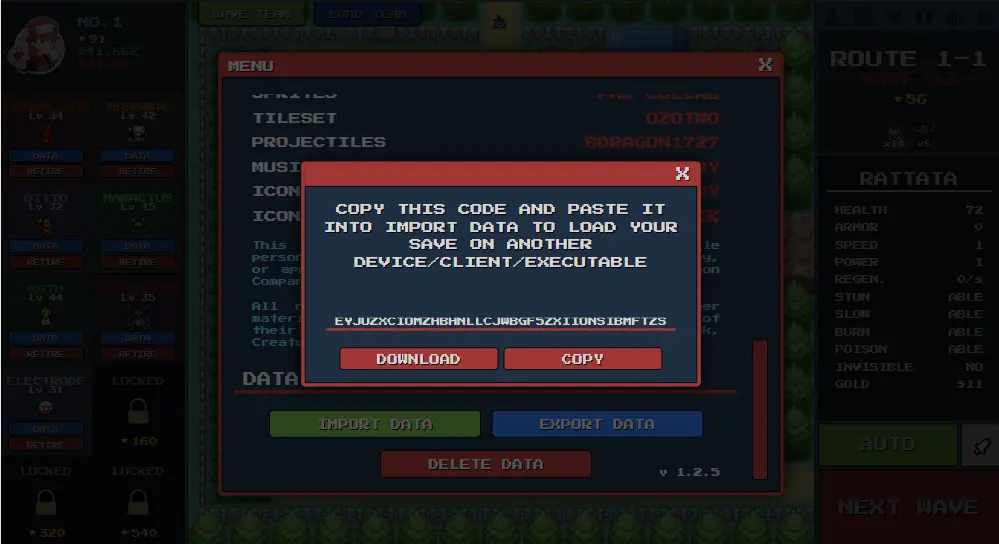
- Find Export Data

- Copy the full PokePath TD save code
 / save text

- Paste it into a plain text file (not a rich document)
The “never regret it” backup format
Create a file name like:
pokepath-td-save-2026-01-03.txt
Then:
- keep one copy locally
- keep one copy in the cloud (Drive/Dropbox/iCloud)
This makes your pokepath td save backup easy to find when something goes wrong.
Tip: save codes are long. Don’t trust your clipboard. Trust a .txt file.
4) How to import save in PokePath TD (restore your progress)
Import steps
-
-
Click the "Settings" button in the top right corner
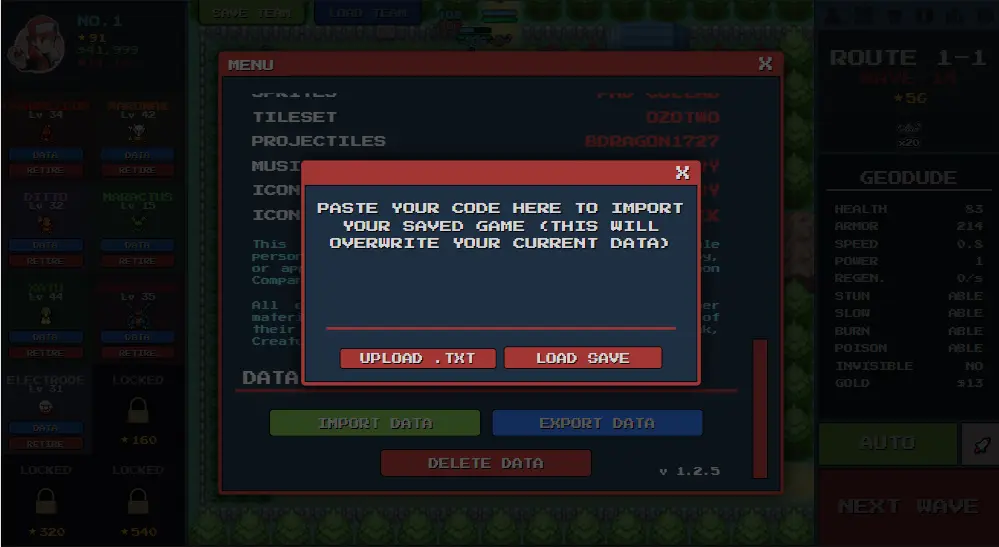
- Find Import Data

- Paste your backup code,
 or load the configuration file

- Confirm import
- Reload/refresh if the game doesn’t update immediately
After import, check the basics:
- roster/team
- resources
- route progress
If your PokePath TD save import doesn’t work, the fix is usually simple.
5) Fix quick problems: save lost / save code invalid
Problem A: “save code invalid”
Most of the time, it’s one of these:
- you copied only part of the code
- the first/last characters got cut off
- formatting changed during paste
Quick fix
- export again
- paste into Notepad/TextEdit (plain text)
- then copy from there into Import
Problem B: “save lost” after closing the browser
This is commonly caused by browser settings or extensions that clear site data.
Quick fix
- turn off “clear cookies/site data on exit”
- avoid private/incognito mode
- export your save before quitting (seriously, this prevents 90% of panic)
Problem C: “I imported, but nothing changed”
Some versions need a refresh to re-read the data.
Quick fix
- refresh the page
- reopen the game
- try import again carefully
Problem D: “Works on one site, fails on another”
Different builds may not accept each other’s save format.
Quick fix
- label your backups with date + where you played
- don’t mix codes blindly
6) Mini FAQ (snippet-friendly)
Is progress saved if I lose?
Yes—you can still get stronger over time in PokePath TD.
But browser saving can still fail, so exporting a PokePath TD save backup is the safest habit.
How often should I export save?
Minimum: before you quit every session.
If you’re farming or doing big upgrades: every 10–20 minutes is a good rhythm.
7) Quick recap (copy this into your brain)
- browser saves are convenient, not guaranteed
- export save + import save is the safest path
- back up before quitting and after big progress
Related guides
- ▶ Play PokePath TD Online (homepage)
- ▶ PokePath TD Mobile (iPhone/Android): Play on Phone + Save Backup
- ▶ PokePath TD Save Code Invalid: Fix Import Errors
- ▶ PokePath TD Download (desktop for better stability)
Ready to jump back in?
Head to the homepage to play now—and remember to export a backup after big progress.